> ## Documentation Index
> Fetch the complete documentation index at: https://developer.tazapay.com/llms.txt
> Use this file to discover all available pages before exploring further.
# Respond to an RFI
> Find, answer, and track RFIs in the Tazapay dashboard
**Coming soon.** The RFI Centre is under active development and is not yet available in the dashboard. The screens below are from a pre-release build and may change before launch.
RFIs are responded to in the dashboard. You cannot reply to an RFI by email.
## Find what needs attention
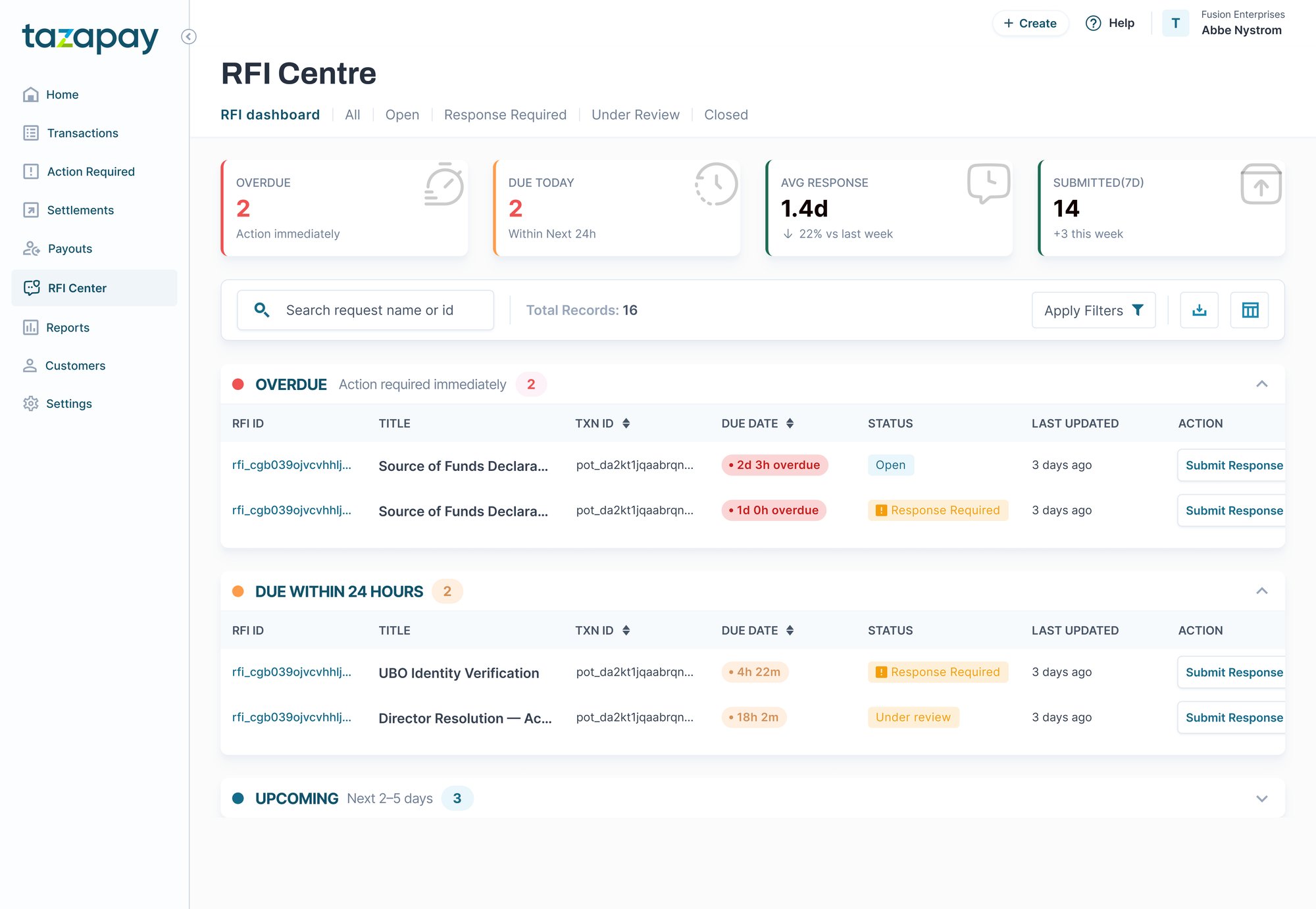
Navigate to **RFI Centre → RFI dashboard**.
Four counters run across the top:
* **Overdue** — RFIs past their due date. Address these first.
* **Due Today** — RFIs due within the next 24 hours.
* **Avg Response** — your account's average time to respond, and the change against last week.
* **Submitted (7D)** — responses your team submitted in the last seven days.
Below the counters, open RFIs are grouped by urgency: **Overdue**, **Due within 24 hours**, and **Upcoming**. Each row shows the RFI ID, title, linked transaction ID, time remaining, status, and when it was last updated.
Use the tabs along the top to see RFIs in a particular state. Search by request name or ID, narrow the list with **Apply Filters**, or export it.
 ## Open an RFI
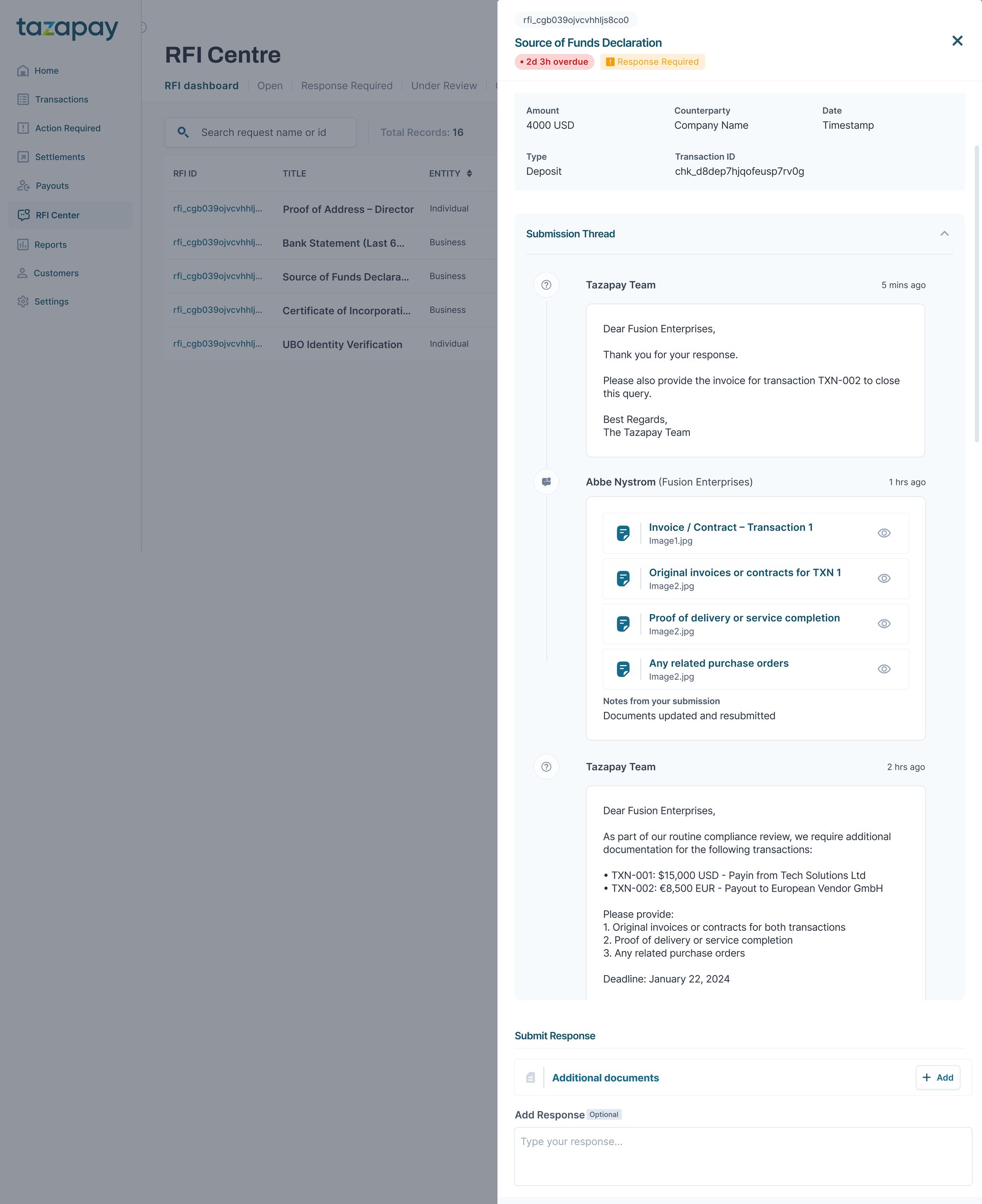
Click the RFI ID, or **Submit Response** on the row, to open the detail panel.
The header carries the RFI ID, title, deadline, and status. Below it is the transaction the request concerns:
| Field | Description |
| -------------- | ------------------------------------------------------------ |
| Amount | Value and currency of the transaction under review |
| Counterparty | The sender or beneficiary the request concerns |
| Date | When the transaction was created |
| Type | Transaction type, for example Deposit or Payout |
| Transaction ID | The linked transaction, for example `chk_xxxx` or `pot_xxxx` |
The **Submission Thread** shows the full history, most recent first: what was asked, what your team has already submitted, and any follow-up. Documents uploaded earlier stay viewable.
## Open an RFI
Click the RFI ID, or **Submit Response** on the row, to open the detail panel.
The header carries the RFI ID, title, deadline, and status. Below it is the transaction the request concerns:
| Field | Description |
| -------------- | ------------------------------------------------------------ |
| Amount | Value and currency of the transaction under review |
| Counterparty | The sender or beneficiary the request concerns |
| Date | When the transaction was created |
| Type | Transaction type, for example Deposit or Payout |
| Transaction ID | The linked transaction, for example `chk_xxxx` or `pot_xxxx` |
The **Submission Thread** shows the full history, most recent first: what was asked, what your team has already submitted, and any follow-up. Documents uploaded earlier stay viewable.
 ## Submit a response
In **Submit Response** at the bottom of the panel:
* Select **+ Add** under **Additional documents** and upload each requested file. Maximum 25 MB per file and 50 MB per RFI.
* Add a response note. Optional, but useful when a document needs explaining or a request does not apply to you.
* Submit. The RFI moves to **Under Review** and your submission appears in the thread.
Files are scanned before they are accepted. Because documents are uploaded directly into your account rather than emailed, personal data in them stays behind your login and role permissions.
Submit the full set of requested documents in one go. A partial submission returns the RFI to Response Required.
## Track the outcome
The RFI sits in **Under Review** while your response is assessed.
| Outcome | What it means | What to do |
| ----------------- | --------------------------------------------- | ----------------------------------------------------------------------------------- |
| Response Required | Further information is needed. | Answer the latest request. Information already accepted does not need to be resent. |
| Closed | The review is complete and the RFI is closed. | No action required. |
There can be several exchanges before an RFI is closed. Each new request appears at the top of the submission thread, with everything already submitted kept below it, read-only.
If you need support with an RFI, contact your Tazapay account manager.
## Deadlines and notifications
Every RFI has a due date, shown as a countdown on the list and in the detail panel.
You are notified by email when an RFI is raised, when the Tazapay team responds or requests further information, and when an RFI is closed. Responses are always submitted in the dashboard.
Admins can configure who receives these email notifications, turning them on or off for each user on your account.
Not responding to an RFI within its deadline may impact the related transaction.
## Who can respond
Access follows your existing dashboard roles.
* **Owner** — full access to the RFI Centre, including responding and uploading documents.
* **Manager** — access is configurable. An Owner can grant view-only access, or permission to respond and upload documents.
Owners invite users and grant access to the RFI Centre from [Managing your team](/getting-started/overview/managing-your-team).
What each RFI status means and what to do next
Invite team members and grant access to the RFI Centre
***
## Submit a response
In **Submit Response** at the bottom of the panel:
* Select **+ Add** under **Additional documents** and upload each requested file. Maximum 25 MB per file and 50 MB per RFI.
* Add a response note. Optional, but useful when a document needs explaining or a request does not apply to you.
* Submit. The RFI moves to **Under Review** and your submission appears in the thread.
Files are scanned before they are accepted. Because documents are uploaded directly into your account rather than emailed, personal data in them stays behind your login and role permissions.
Submit the full set of requested documents in one go. A partial submission returns the RFI to Response Required.
## Track the outcome
The RFI sits in **Under Review** while your response is assessed.
| Outcome | What it means | What to do |
| ----------------- | --------------------------------------------- | ----------------------------------------------------------------------------------- |
| Response Required | Further information is needed. | Answer the latest request. Information already accepted does not need to be resent. |
| Closed | The review is complete and the RFI is closed. | No action required. |
There can be several exchanges before an RFI is closed. Each new request appears at the top of the submission thread, with everything already submitted kept below it, read-only.
If you need support with an RFI, contact your Tazapay account manager.
## Deadlines and notifications
Every RFI has a due date, shown as a countdown on the list and in the detail panel.
You are notified by email when an RFI is raised, when the Tazapay team responds or requests further information, and when an RFI is closed. Responses are always submitted in the dashboard.
Admins can configure who receives these email notifications, turning them on or off for each user on your account.
Not responding to an RFI within its deadline may impact the related transaction.
## Who can respond
Access follows your existing dashboard roles.
* **Owner** — full access to the RFI Centre, including responding and uploading documents.
* **Manager** — access is configurable. An Owner can grant view-only access, or permission to respond and upload documents.
Owners invite users and grant access to the RFI Centre from [Managing your team](/getting-started/overview/managing-your-team).
What each RFI status means and what to do next
Invite team members and grant access to the RFI Centre
***