> ## Documentation Index
> Fetch the complete documentation index at: https://developer.tazapay.com/llms.txt
> Use this file to discover all available pages before exploring further.
# MultiFactor Authentication
> MFA ensures only verified users gain access by requiring multiple authentication factors.
MFA adds an extra layer of security by requiring a second verification step beyond your password. It is mandatory for all Tazapay accounts at login and during high-risk actions.
# Setup
1. On login, you'll be prompted to set up MFA.
2. Choose a method: Passkey (recommended), SMS code, or Authenticator App (TOTP).
3. Complete Verification.
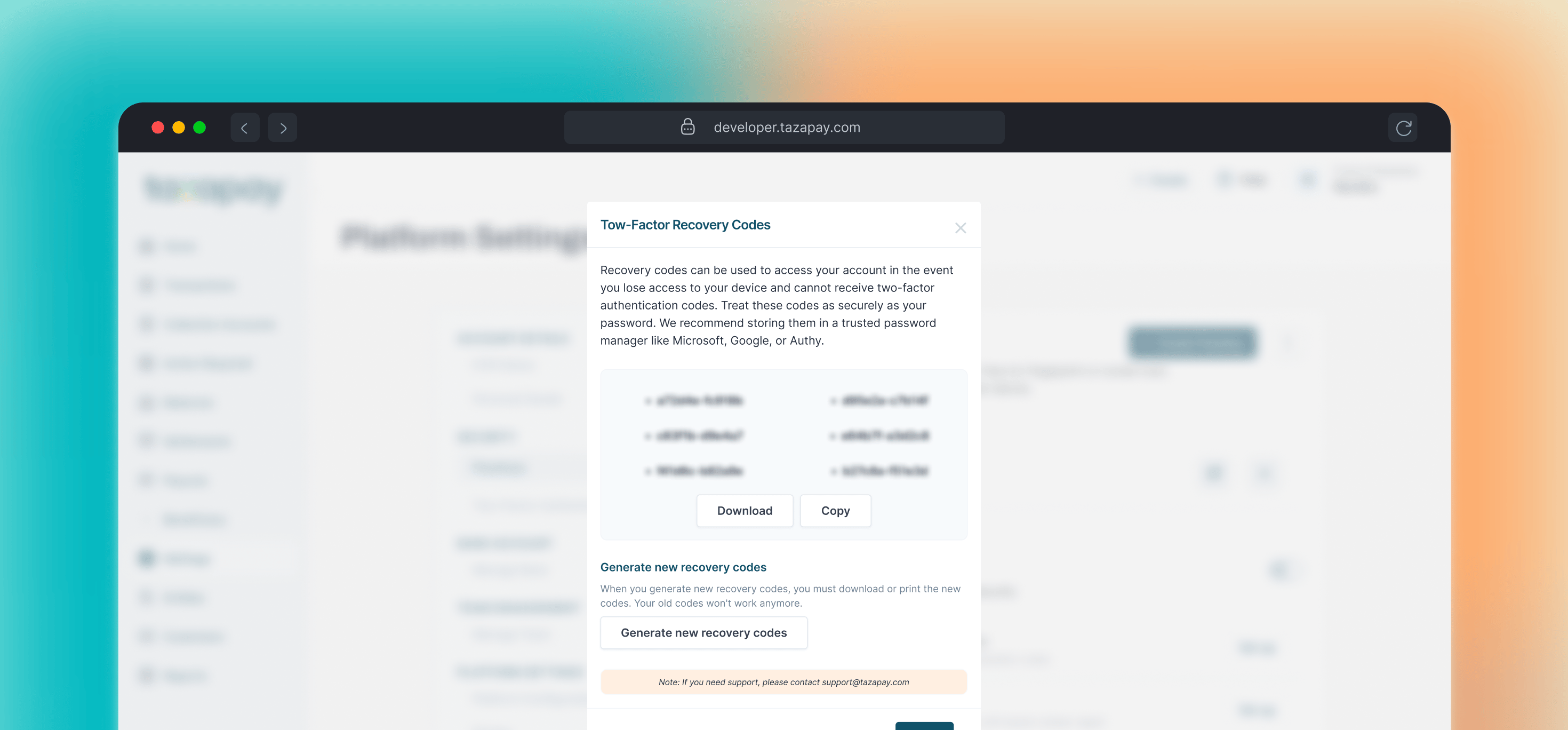
4. Save your recovery codes securely for backup access.
You can also configure MFA in **Settings → Security → Multi-Factor Authentication**.
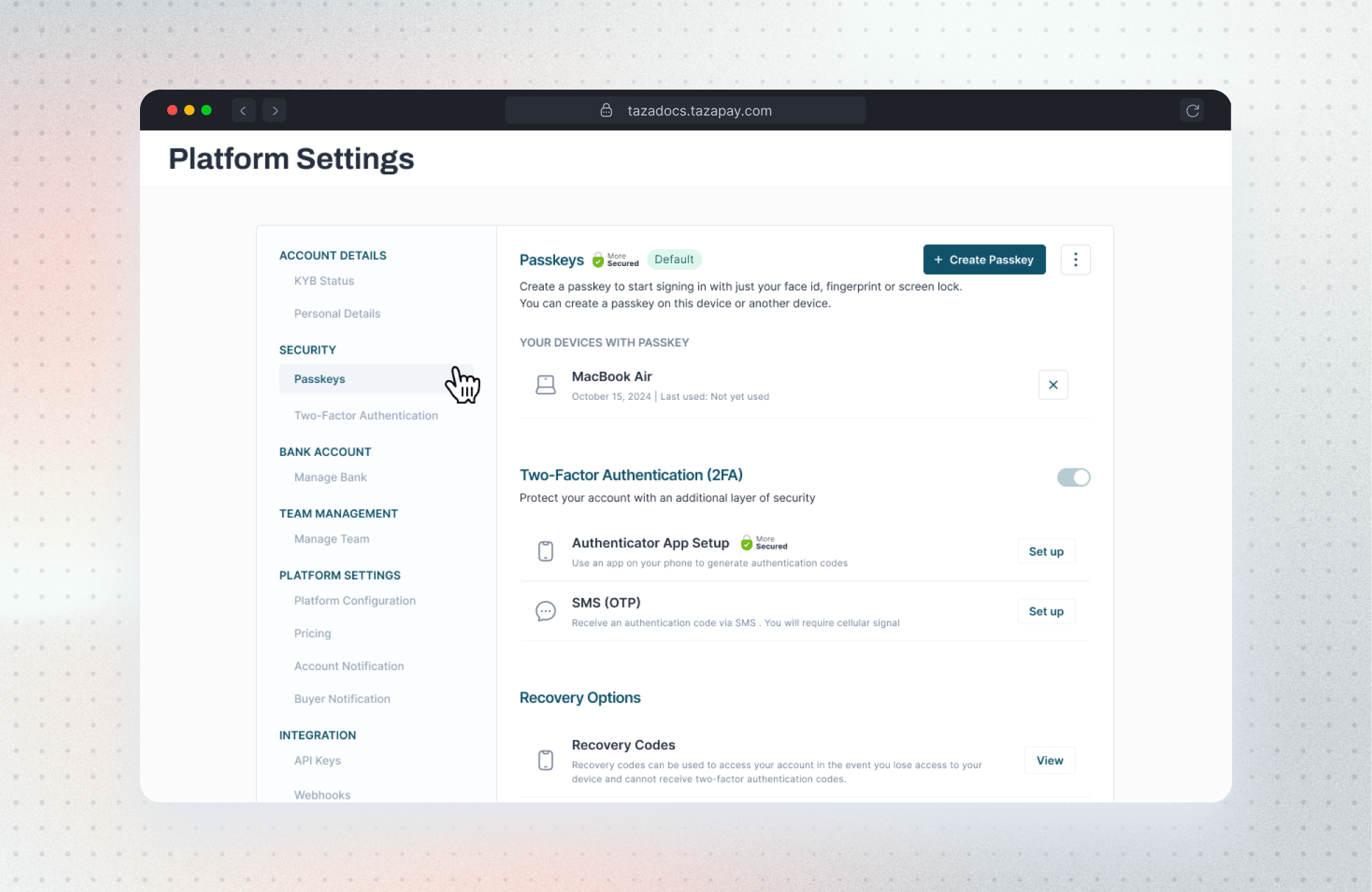 # MFA Methods
Recommended
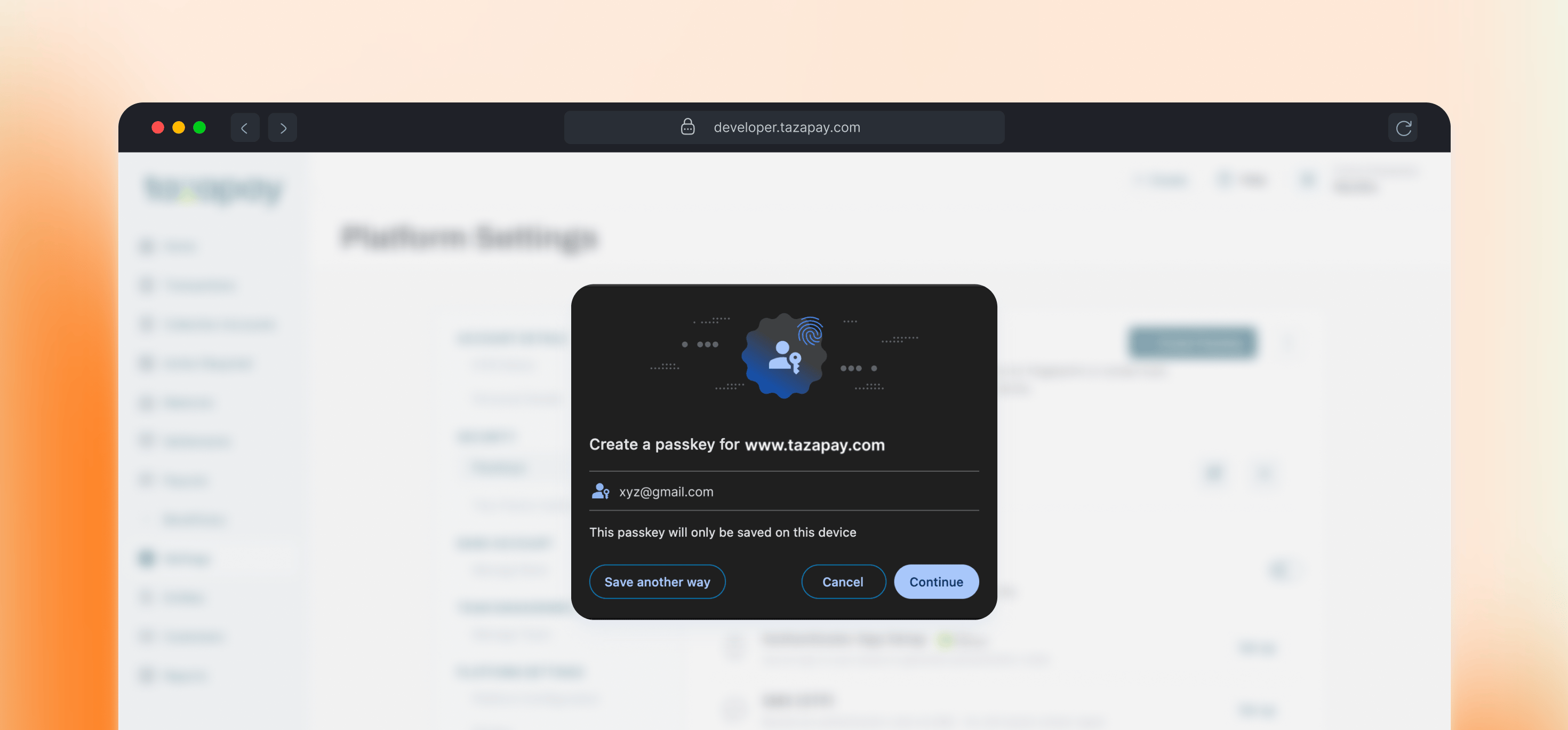
Uses Face ID, fingerprint, or device lock. No code to enter — one tap to verify.
# MFA Methods
Recommended
Uses Face ID, fingerprint, or device lock. No code to enter — one tap to verify.
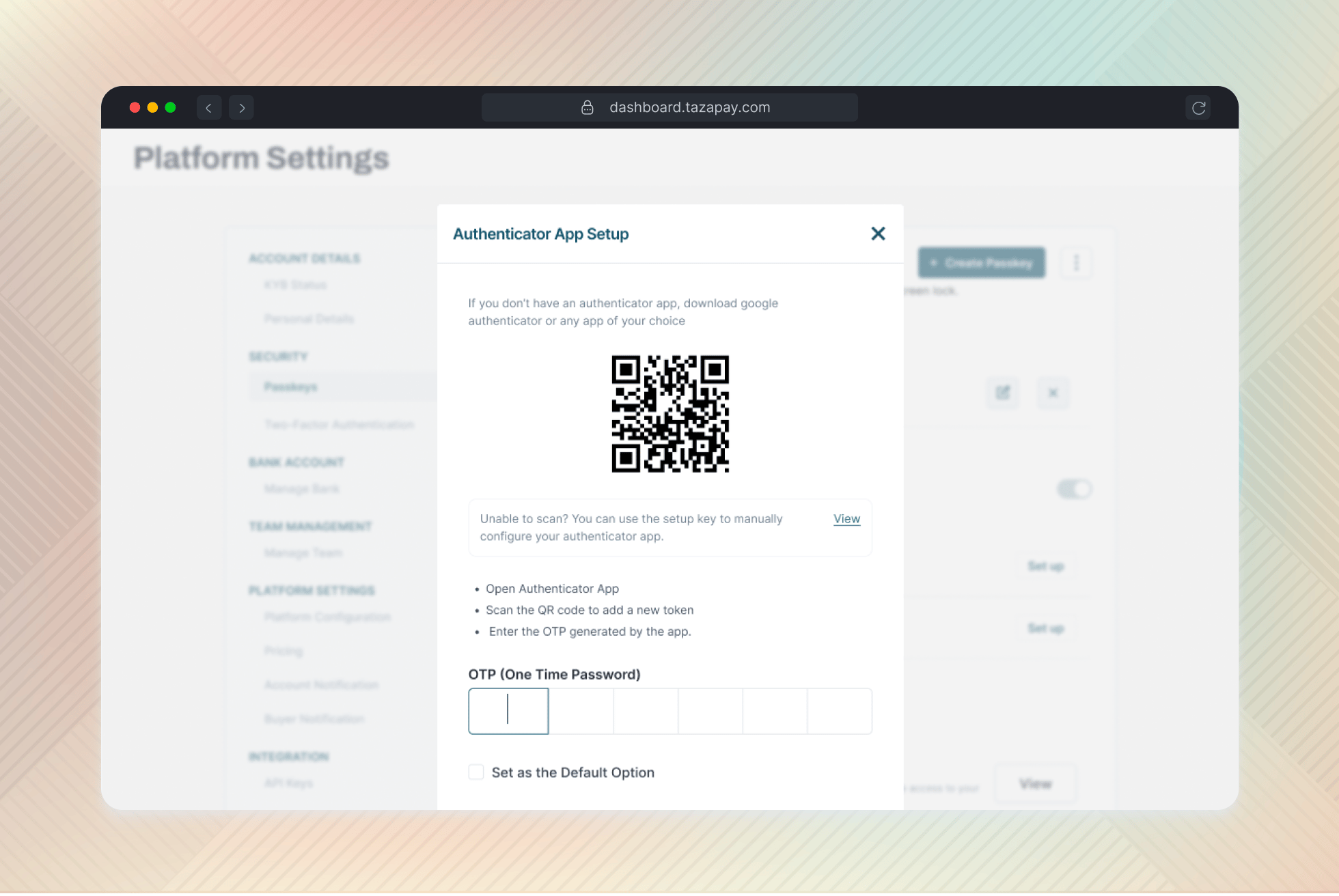
 Google Authenticator, Authy, or 1Password. Generates a new 6-digit code every 30 seconds.
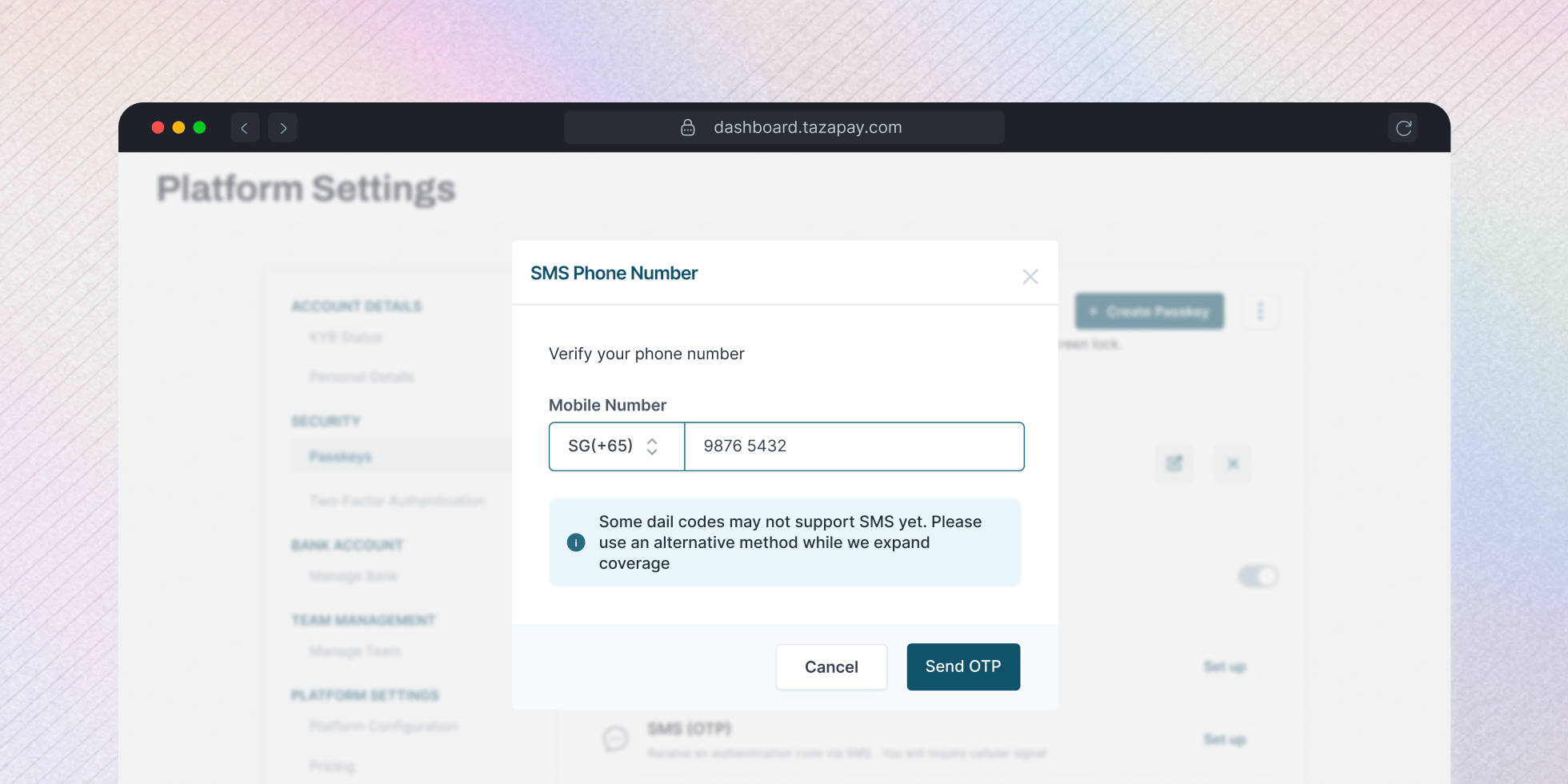
 6-digit code sent to your registered phone number. Requires mobile signal.
 One-time use backup codes generated during setup. Use only if other methods are unavailable.
 Backup only
# Managing MFA
From **Settings → Security → MFA**, you can:
* Add/remove passkeys
* Update your SMS number
* Replace your authenticator app
* Change your default method
* View or regenerate recovery codes
***
# Best Practices
* Enable at least two MFA methods to prevent lockout.
* Store recovery codes securely and offline.
* Prefer Passkeys for best balance of security and convenience.
* Use [role-based access](/getting-started/overview/managing-your-team): add teammates via Settings → Manage team → Invite Teammate so each user has independent MFA.
# Support
If you lose access to all MFA methods and recovery codes, contact [support@tazapay.com](mailto:support@tazapay.com).
Backup only
# Managing MFA
From **Settings → Security → MFA**, you can:
* Add/remove passkeys
* Update your SMS number
* Replace your authenticator app
* Change your default method
* View or regenerate recovery codes
***
# Best Practices
* Enable at least two MFA methods to prevent lockout.
* Store recovery codes securely and offline.
* Prefer Passkeys for best balance of security and convenience.
* Use [role-based access](/getting-started/overview/managing-your-team): add teammates via Settings → Manage team → Invite Teammate so each user has independent MFA.
# Support
If you lose access to all MFA methods and recovery codes, contact [support@tazapay.com](mailto:support@tazapay.com).